Scripts
PowerShell
CBSupport (local Machine).ps1
Support tool to gather logs and files required to assist in troubleshooting for local machine
this can be run remotely and will not prompt anything to the current logged in user - Justin
#Support tool to gather logs and files required to assist in troubleshooting for local machine
#this can be run remotely and will not prompt anything to the current logged in user - Justin


#region Gather Intel
Set-Location -Path C:\Users\$env:USERNAME
$SupportPerson = Read-Host -Prompt 'Who is running this support tool?'
$vComments = Read-Host -Prompt 'What is the issue that your troubleshooting?'
$vTicketNo = Read-Host -Prompt 'Connectwise Ticket Number?'
#$vINCNo = Read-Host -Prompt 'Phoenix INC number?'
$vHeading = "CodeBlue Support Tool"


#endregion Gather Intel

#region GET COMP NAME

$vComputerName = (Get-Item env:\Computername).Value
$vHostName = hostname
$vUserName = $env:UserName

#endregion GET COMP NAME

#region CLEAR EXISTING

If(Test-path "C:\Temps\CBSupportTool\$vUserName") {Remove-item "C:\Temps\CBSupportTool\$vUserName" -confirm -Recurse}

#endregion

$logFile = "C:\temps\CBSupportTool\$vUserName\$vHostName\Assets\log.log"

#region MAKE DIR

md "C:\temps\CBSupportTool\$vUserName\$vHostname\iManage"
md "C:\temps\CBSupportTool\$vUserName\$vHostname\Assets"

#endregion MAKE DIR


Out-file -FilePath $logFile -InputObject $vHeading
cls
Add-Content $logFile "*********************************"
Get-Content -Path $logFile


#region Global variables #
cls
Add-Content $logFile "Setting Global Variables..."
Get-Content -Path "C:\temps\CBSupportTool\$vUserName\$vHostName\Assets\log.log"

$Assets = "C:\temps\CBSupportTool\$vUserName\$vHostname\Assets"
$vUserName = (Get-Item env:\username).Value 			## This will get username using environment variable
$filepathASS = "C:\temps\CBSupportTool\$vUserName\$vHostname\Assets"
$filepath = "C:\temps\CBSupportTool\$vUserName\$vHostname"
$cpuName = (Get-WmiObject win32_processor -ComputerName $vComputerName | select Name)
$image = "<img src='https://codeblue.co.nz/wp-content/uploads/2017/05/Codeblue_blue-writnig.png' width='400'>"
$wc = New-Object System.Net.WebClient

cls
Add-Content $logFile "Global Variables Set"
Get-Content -Path "C:\temps\CBSupportTool\$vUserName\$vHostName\Assets\log.log"

#endregion Global variables #


#region HTML Output Formatting #
cls
Add-Content $logFile "HTML Formatting..."
Get-Content -Path "C:\temps\CBSupportTool\$vUserName\$vHostName\Assets\log.log"

$a = "<style>"
$a = $a + "BODY{background-color:#456177;}"
$a = $a + "h1 { font-family:Tahoma; color:#2FD9EF;}"
$a = $a + "h2 { font-family:Tahoma; color:#EAEAE6;}"
$a = $a + "h3 { font-family:Tahoma; color:#FFC305;}"
$a = $a + "TABLE{border-width: 1px;border-style: solid;border-color: black;border-collapse: collapse;}"
$a = $a + "TH{border-width: 1px;padding: 3px;border-style: solid;border-color: black;background-color:#05B3EB}"
$a = $a + "TD{border-width: 1px;padding: 3px;border-style: solid;border-color: black;background-color:#EAEAE6}"

$a = $a + "TABLE.table1{border-width: 0px;border-style: None;border-color: black;border-collapse: collapse;}"
$a = $a + "TABLE.table1 TH{border-width: 0px;padding: 3px;border-style: solid;border-color: black;background-color:#05B3EB}"
$a = $a + "TABLE.table1 TD{border-width: 0px;padding: 3px;border-style: solid;border-color: black;background-color:#FFFFFF}"
$a = $a + "</style>"


cls
Add-Content $logFile "HTML Formatting set"
Get-Content -Path "C:\temps\CBSupportTool\$vUserName\$vHostName\Assets\log.log"

#endregion HTML Output Formatting #

#region Logo Heading Cell
cls
Add-Content $logFile "Gathering Machine Info...."
Get-Content -Path "C:\temps\CBSupportTool\$vUserName\$vHostName\Assets\log.log"

$PysicalMemory = Get-WmiObject -class "win32_physicalmemory" -namespace "root\CIMV2" -ComputerName $vComputername
$totalmem = "$((($PysicalMemory).Capacity | Measure-Object -Sum).Sum/1GB)GB"


ConvertTo-Html -Head $b -Title "System Information for $vComputerName" -Body `
"<table class=$("Table1")>
  <tr>
     <td>$image</td>
     <td><p>Hostname: $vHostName</p><p>Username: $vuserName<p>Support Tech: $SupportPerson</td>
     <td><p>Comments:</p><p>$vComments</p></td>
     <td><p>WLAN Report:</p><p><a href=./Assets/wlan-report-latest.html</a></p></td>
  </tr>

</table>" > "$filepath\$vComputerName.html"

#endregion Logo Heading Cell

#region  Hardware Information

cls
Add-Content $logFile "Hardware Information Start..."
Get-Content -Path "C:\temps\CBSupportTool\$vUserName\$vHostName\Assets\log.log"

ConvertTo-Html -Body "<H1>HARDWARE INFORMATION</H1>" >> "$filepath\$vComputerName.html"

#region CPU

#Get-WmiObject win32_processor -ComputerName $vComputerName | select Manufacturer, MaxClockSpeed, Name, NumberOfCores `
#                                          | ConvertTo-html -Body "<H2>CPU Information</H2>" >>  "$filepath\$vComputerName.html"

Get-WmiObject win32_processor  -ComputerName $vComputerName | select Manufacturer, MaxClockSpeed, Name, NumberOfCores `
                                           | ConvertTo-html -HEAD $a -Body "<H2></H2>" > "$filepathASS\CPU.html"


#endregion CPU

#region Memory


Get-WmiObject win32_physicalmemory -ComputerName $vComputerName | select Manufacturer,Banklabel,Configuredclockspeed,Devicelocator,Capacity,Serialnumber `
                                           | ConvertTo-html -HEAD $a -Body "<H2></H2>" >  "$filepathASS\RAM.html"


$TotalSlots = ((Get-WmiObject -Class "win32_PhysicalMemoryArray" -namespace "root\CIMV2" -ComputerName $vComputername).MemoryDevices | Measure-Object -Sum).Sum
$UsedSlots = (($PysicalMemory) | Measure-Object).Count

ConvertTo-Html -HEAD $a -Body "<table>
<tr>
    <th>Total Memory</th>
    <th>Used Slots</th>
    <th>Total Slots</th>
  </tr>
  <tr>
    <td>$totalmem</td>
    <td>$UsedSlots</td>
    <td>$TotalSlots</td>
  </tr>
  </table>

 " > "$filepathASS\RAM2.html"

#endregion Memory

#region GPU
Get-WmiObject win32_VideoController -ComputerName $vComputerName | select Name, DriverVersion, Status, MaxRefreshRate, VideoModeDescription,@{Expression={$_.AdapterRAM /1GB -as [Int]};Label="Video Memory (GB)"} `
                                          | ConvertTo-html -Head $a -Body "<H2></H2>" >  "$filepathASS\GPU.html"
#endregion GPU

#region BIOS
Get-WmiObject win32_bios -ComputerName $vComputerName | select Status,Version,PrimaryBIOS,Manufacturer,ReleaseDate,SerialNumber `
                                          | ConvertTo-html -Head $a -Body "<H2></H2>" >  "$filepathASS\Bios.html"
#endregion BIOS

#region DISK
Get-WmiObject win32_DiskDrive -ComputerName $vComputerName | Select Model,SerialNumber,Description,MediaType,FirmwareRevision `
|ConvertTo-html -Head $a -Body "<H2></H2>" >  "$filepathASS\Disk.html"

#endregion DISK

#region NETWORK
get-WmiObject win32_networkadapter -ComputerName $vComputerName | Select Name,Manufacturer,Description ,AdapterType,Speed,MACAddress,NetConnectionID `
                                          | ConvertTo-html -HEAD $a -Body "<H2></H2>" >  "$filepathASS\Network.html"
#endregion NETWORK

#region Collapsable Buttons

 ConvertTo-Html -Body '<style>
.collapsible {
  background-color: #456177;
  color: white;
  cursor: pointer;
  padding: 18px;
  width: 100%;
  border: none;
  text-align: left;
  outline: none;
  font-size: 15px;
}

.active, .collapsible:hover {
  background-color: #05B3EB;
}

.collapsible:after {
  content: "\002B";
  color: white;
  font-weight: bold;
  float: right;
  margin-left: 5px;
}

.active:after {
  content: "\2212";
}

.content {
  padding: 1 18px;
  max-height: 0;
  overflow: hidden;
  transition: max-height 0.2s ease-out;
  background-color: #05B3EB;
}
</style>


</head>
<body>

 <button class="collapsible">CPU Information</button>
<div class="content">
   <embed src="./Assets/CPU.html" width="100%" height="210">
</div>

 <button class="collapsible">RAM Information</button>
<div class="content">
   <embed src="./Assets/RAM.html" width="100%" height="210">
   <embed src="./Assets/RAM2.html" width="100%" height="100">
</div>

 <button class="collapsible">Network Information</button>
<div class="content">
   <embed src="./Assets/Network.html" width="100%" height="300">
</div>

<button class="collapsible">GPU Information</button>
<div class="content">
   <embed src="./Assets/GPU.html" width="100%" height="300">
</div>

<button class="collapsible">BIOS Information</button>
<div class="content">
   <embed src="./Assets/Bios.html" width="100%" height="300">
</div>

<button class="collapsible">Disk Information</button>
<div class="content">
   <embed src="./Assets/Disk.html" width="100%" height="300">
</div>


</body>' >> "$filepath\$vComputerName.html"

#endregion Collapsable Buttons

cls
Add-Content $logFile "Hardware Information Complete"
Get-Content -Path "C:\temps\CBSupportTool\$vUserName\$vHostName\Assets\log.log"

#endregion Hardware Information

#region OS Information
cls
Add-Content $logFile "Software Information Start..."
Get-Content -Path "C:\temps\CBSupportTool\$vUserName\$vHostName\Assets\log.log"

ConvertTo-Html -Body "<H1>OS INFORMATION </H1>" >> "$filepath\$vComputername.html"

get-WmiObject win32_operatingsystem -ComputerName $vComputerName | select Caption,Organization,InstallDate,OSArchitecture,Version,SerialNumber,BootDevice,WindowsDirectory,CountryCode `
                                          | ConvertTo-html -Head $a -Body "<H2>Operating System Information</H2>" >  "$filepathASS\OS.html"

Get-WmiObject win32_logicalDisk -ComputerName $vComputerName | select DeviceID,VolumeName,@{Expression={$_.Size /1Gb -as [int]};Label="Total Size(GB)"},@{Expression={$_.Freespace / 1Gb -as [int]};Label="Free Size (GB)"} `
                                         | ConvertTo-html -Head $a -Body "<H2> Logical DISK Drives </H2>" >  "$filepathASS\LogDisk.html"

Get-WmiObject Win32_NetworkAdapterConfiguration -ComputerName $vComputerName |
    Select-Object Description, DHCPServer,
        @{Name='IpAddress';Expression={$_.IpAddress -join '; '}},
        @{Name='IpSubnet';Expression={$_.IpSubnet -join '; '}},
        @{Name='DefaultIPgateway';Expression={$_.DefaultIPgateway -join '; '}},
        @{Name='DNSServerSearchOrder';Expression={$_.DNSServerSearchOrder -join '; '}},
        WinsPrimaryServer, WINSSecondaryServer| ConvertTo-html -Head $a  >  "$filepathASS\IP.html"

Get-Printer | select Name, Type, PrinterStatus, DriverName, JobCount, Location, PortName | ConvertTo-html -Head $a  >  "$filepathASS\print.html"

#endregion OS Information

#region Collapsable Buttons OS INFO

 ConvertTo-Html -Body '

</head>
<body>


 <button class="collapsible">Operating System Information</button>
<div class="content">
   <embed src="./Assets/OS.html" width="100%" height="210">
</div>

 <button class="collapsible">Logical Disk Drives</button>
<div class="content">
   <embed src="./Assets/logDisk.html" width="100%" height="210">
</div>

 <button class="collapsible">IP Information</button>
<div class="content">
   <embed src="./Assets/Network.html" width="100%" height="300">
</div>

 <button class="collapsible">Printers</button>
<div class="content">
   <embed src="./Assets/print.html" width="100%" height="210">
</div>

</body>' >> "$filepath\$vComputerName.html"

#endregion Collapsable Buttons

#region  Software Information

cls
Add-Content $logFile "Collecting Startup Information..."
Get-Content -Path "C:\temps\CBSupportTool\$vUserName\$vHostName\Assets\log.log"

ConvertTo-Html -Body "<H1>SOFTWARE INFORMATION </H1>" >> "$filepath\$vComputerName.html"

Get-WmiObject win32_startupCommand -ComputerName $vComputerName | select Name,Location,Command,User,caption `
                                          | ConvertTo-html  -Head $a -Body "<H2>Startup Softwares</H2>" >  "$filepathASS\Startup.html"

                                          cls
Add-Content $logFile "Collecting Startup Information Complete"
Get-Content -Path "C:\temps\CBSupportTool\$vUserName\$vHostName\Assets\log.log"

Get-WmiObject win32_process -ComputerName $vComputerName | select Caption,ProcessId,@{Expression={$_.Vm /1mb -as [Int]};Label="VM (MB)"},@{Expression={$_.Ws /1Mb -as [Int]};Label="WS (MB)"} |sort "Vm (MB)" -Descending `
                                         | ConvertTo-html  -Head $a -Body "<H2> Running Processes</H2>" >  "$filepathASS\Running.html"


Get-WmiObject win32_Service  | where {$_.StartMode -eq "Auto" -and $_.State -eq "stopped"} |  Select Name,StartMode,State `
                                          | ConvertTo-html  -Head $a -Body "<H2> Services </H2>" >  "$filepathASS\Service.html"
#endregion Software Information

#region Gather Application info

cls
Add-Content $logFile "Collecting Application Information..."
Get-Content -Path "C:\temps\CBSupportTool\$vUserName\$vHostName\Assets\log.log"

Get-WmiObject -Class Win32_Product  | select Name, Vendor, Version, InstallDate, InstallLocation, InstallSource  | Sort-Object Name | ConvertTo-html -HEAD $a -Body "<H2>Installed Applications</H2>" > "$filepathASS\Apps.html"

cls
Add-Content $logFile "Collecting Application Information Complete"
Get-Content -Path "C:\temps\CBSupportTool\$vUserName\$vHostName\Assets\log.log"

#endregion Applications

#region Gather Wlan Report


cls
Add-Content $logFile "Gathering WLAN Report..."
Get-Content -Path "C:\temps\CBSupportTool\$vUserName\$vHostName\Assets\log.log"

netsh wlan show wlanreport
Move-Item -Path C:\ProgramData\Microsoft\Windows\WlanReport\wlan-report-latest.html -Destination C:\temps\CBSupportTool\$vUserName\$vHostName\Assets

cls
Add-Content $logFile "Completed WLAN Report..."
Get-Content -Path "C:\temps\CBSupportTool\$vUserName\$vHostName\Assets\log.log"
#endregion Gather Wlan Report

#region Collapsable Buttons SOFTWARE

 ConvertTo-Html -head $a -Body '

</head>
<body>

<button class="collapsible">Error Events (Top 100)</button>
<div class="content">
   <embed src="./Assets/iManageErr.html" width="100%" height="1000">
</div>


<button class="collapsible">iManage Errors</button>
<div class="content">
   <embed src="./Assets/iManageEvent.html" width="100%" height="1000">
</div>


<button class="collapsible">iManage Registry Report</button>
<div class="content">
   <embed src="./Assets/iManageReg.html" width="100%" height="1000">
</div>


 <button class="collapsible">Applications</button>
<div class="content">
   <embed src="./Assets/apps.html" width="100%" height="800">
</div>

 <button class="collapsible">Startup Software</button>
<div class="content">
   <embed src="./Assets/Startup.html" width="100%" height="800">
</div>

 <button class="collapsible">Running Process</button>
<div class="content">
   <embed src="./Assets/Running.html" width="100%" height="600">
</div>

 <button class="collapsible">Service</button>
<div class="content">
   <embed src="./Assets/Service.html" width="100%" height="300">
</div>


<script>
var coll = document.getElementsByClassName("collapsible");
var i;

for (i = 0; i < coll.length; i++) {
  coll[i].addEventListener("click", function() {
    this.classList.toggle("active");
    var content = this.nextElementSibling;
    if (content.style.maxHeight){
      content.style.maxHeight = null;
    } else {
      content.style.maxHeight = content.scrollHeight + "px";
    }
  });
}
</script>

</body>' >> "$filepath\$vComputerName.html"

#endregion Collapsable Buttons

cls
Add-Content $logFile "Software Information Complete..."
Get-Content -Path "C:\temps\CBSupportTool\$vUserName\$vHostName\Assets\log.log"

#region REPORT
$Report = "The Report is generated On  $(get-date) by $((Get-Item env:\username).Value) on computer $((Get-Item env:\Computername).Value)"
$Report  >> "$filepath\$vComputerName.html"
#endregion REPORT


#zip all files to email
$compress = @{
Path= "C:\temps\CBSupportTool\$vUserName\"
CompressionLevel = "Fastest"
DestinationPath = "C:\temps\CBSupportTool\$vUserName\CBSupport.zip"
}
Compress-Archive @compress


#Read-Host -Prompt "Press any key to continue to email prompt or CTRL+C to quit"
Start-Sleep -s 2

function emailrecip{


Add-Type -AssemblyName System.Windows.Forms
Add-Type -AssemblyName System.Drawing


$form = New-Object System.Windows.Forms.Form
$form.Text = 'Email Support Files'
$form.Size = New-Object System.Drawing.Size(300,200)
$form.StartPosition = 'CenterScreen'

$OKButton = New-Object System.Windows.Forms.Button
$OKButton.Location = New-Object System.Drawing.Point(75,120)
$OKButton.Size = New-Object System.Drawing.Size(75,23)
$OKButton.Text = 'OK'
$OKButton.DialogResult = [System.Windows.Forms.DialogResult]::OK
$form.AcceptButton = $OKButton
$form.Controls.Add($OKButton)

$CancelButton = New-Object System.Windows.Forms.Button
$CancelButton.Location = New-Object System.Drawing.Point(150,120)
$CancelButton.Size = New-Object System.Drawing.Size(75,23)
$CancelButton.Text = 'Cancel'
$CancelButton.DialogResult = [System.Windows.Forms.DialogResult]::Cancel
$form.CancelButton = $CancelButton
$form.Controls.Add($CancelButton)

$label = New-Object System.Windows.Forms.Label
$label.Location = New-Object System.Drawing.Point(10,20)
$label.Size = New-Object System.Drawing.Size(280,20)
$label.Text = 'Select who should recieve support files:'
$form.Controls.Add($label)

$listBox = New-Object System.Windows.Forms.ListBox
$listBox.Location = New-Object System.Drawing.Point(10,40)
$listBox.Size = New-Object System.Drawing.Size(260,20)
$listBox.Height = 80

[void] $listBox.Items.Add('justin.cartwright@codeblue.co.nz')
[void] $listBox.Items.Add('james.doody@codeblue.co.nz')
[void] $listBox.Items.Add('cbsupport@wynnwilliams.co.nz')


$form.Controls.Add($listBox)

$form.Topmost = $true

$result = $form.ShowDialog()

if ($result -eq [System.Windows.Forms.DialogResult]::OK)
{
    $x = $listBox.SelectedItem
    $x
}

$Script:emailper = $x


}


function SendEmail{
Send-MailMessage -From “codeblue@wynnwilliams.co.nz” -To $emailper -Attachments "C:\temps\CBSupportTool\$vUserName\CBSupport.zip" -Subject “CB Support Zip $vINCNo for user: $vUserName" -Body "$SupportPerson Wrote: $vComments. Connectwise No.$vTicketNo" -SmtpServer “smtp.office365.com” -UseSsl -Credential “codeblue@wynnwilliams.co.nz”

}


#region Email Question

#$wshell = New-Object -ComObject Wscript.Shell
#$emailAwnser = $wshell.Popup("The report generation script has successfully completed! Do you want to email the support files?",0,"Completed",4+32)


#If($emailAwnser -match "6") {emailrecip}

#If($emailAwnser -match "6") {SendEmail}
#$emailAwnser = "NONE"

#endregion Email Question


#open HTML
#invoke-Expression "$filepath\'$vComputerName'.html"
#Invoke-Item $filepath


#delete files
cls
Add-Content $logFile "Completed Support Tool..."
Get-Content -Path "C:\temps\CBSupportTool\$vUserName\$vHostName\Assets\log.log"

Start-Sleep -s 2
Citrix Version Check.ps1
#Citrix Version Wanted
#
#----------
#WORKFLOW
#------------
#Check location, clear/delete
#Download correct version to temp
#run script to detect/uninstall old version, then run script to install
#
#
#
#
#
#
#
#


$wantedver = "

22.6.0.61


"

$citrixver = Get-childitem "HKLM:\SOFTWARE\WOW6432Node\Citrix\InstallDetect\" | Get-itemProperty | select DisplayVersion | ft -HideTableHeaders | Out-String


if ($citrixver -ne $wantedver)
{

$title    = 'Wrong Version of Citrix installed!'
$question = 'The correct version will be installed now, Are you sure you want to proceed?'
$choices  = '&Yes', '&No'

$decision = $Host.UI.PromptForChoice($title, $question, $choices, 1)
if ($decision -eq 0) {
    Write-Host 'confirmed'
C:\temp\CurrentCitrixWorkspaceApp.exe /silent /uninstall
} else {
    Write-Host 'cancelled'
}

}
#Download correct version
# $URL = "http://files.thecartwrights.nz/share/Whl3ekUX/CitrixWorkspaceApp LTSR 2201-1.exe"
# $DLPath = "C:\temp"
# (New-Object System.Net.WebClient).DownloadFile($URL, $Path)
Login Session Length
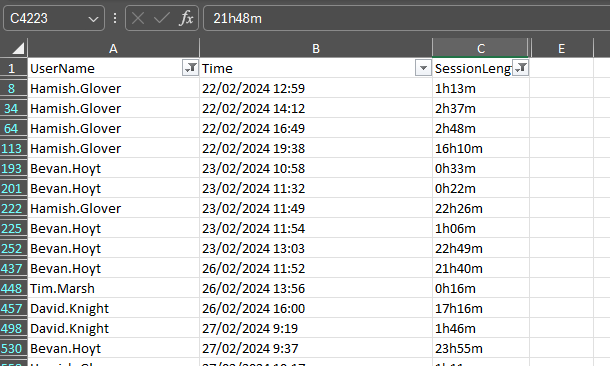
This PowerShell script gathers login and logoff events from the Security log, calculates session lengths for each user session, and exports the information to a CSV file.
Here's a breakdown of what each part of the script does:
-
Convert-TicksToTime Function: This function takes ticks (a unit of time in .NET framework) as input and converts them into a readable time format in hours and minutes.
-
Get-WinEvent Cmdlet: It retrieves events from the Security log with event IDs 4624 (logon events) and 4625 (logoff events). It sorts the events by their creation time.
-
$logins Array: This array will store login information.
-
Loop Through Events: For each event retrieved, it parses the XML representation of the event to extract relevant properties such as time, event ID, and username.
-
Calculating Session Length: For logoff events (event ID 4624), it looks for the next logon event for the same user and calculates the session length by subtracting the logon time from the logoff time. It uses the
Convert-TicksToTimefunction to convert the time difference from ticks to a human-readable format. -
Export to CSV: Finally, it exports the collected login information to a CSV file named 'LoginInfo.csv' without including type information.
In summary, this script is a utility to collect and analyze user login and logoff events from the Windows Security log and export them to a CSV file for further analysis or reporting.
Preview of output (fiiltered)
# Function to convert ticks to a readable time format (hours and minutes)
function Convert-TicksToTime {
    param(
        [Parameter(Mandatory=$true)]
        [long]$Ticks
    )
    return [TimeSpan]::FromTicks($Ticks).ToString('h\hmm\m')
}

# Get all login events
$loginEvents = Get-WinEvent -FilterHashtable @{
    LogName='Security';
    ID=4624, 4625; # Logon and logoff event IDs
} -ErrorAction SilentlyContinue | Sort-Object TimeCreated

# Array to store login information
$logins = @()

foreach ($event in $loginEvents) {
    $eventXML = [xml]$event.ToXml()

    $properties = @{
        'Time' = $event.TimeCreated
        'EventID' = $event.Id
        'UserName' = $event.Properties[5].Value
        'SessionLength' = ''
    }

    # If it's a logoff event, calculate session length
    if ($event.Id -eq 4624) {
        $logoffEvent = $loginEvents | Where-Object { $_.Properties[5].Value -eq $properties['UserName'] -and $_.TimeCreated -gt $event.TimeCreated } | Select-Object -First 1
        if ($logoffEvent) {
            $properties['SessionLength'] = Convert-TicksToTime ($logoffEvent.TimeCreated - $event.TimeCreated).Ticks
        }
    }

    $logins += New-Object PSObject -Property $properties
}

# Export to CSV
$logins | Export-Csv -Path 'LoginInfo.csv' -NoTypeInformation
Meshcentral
Linux Install CMD
(wget "https://meshcentral.thecartwrights.nz/meshagents?script=1" -O ./meshinstall.sh || wget "https://meshcentral.thecartwrights.nz/meshagents?script=1" --no-proxy -O ./meshinstall.sh) && chmod 755 ./meshinstall.sh && sudo -E ./meshinstall.sh https://meshcentral.thecartwrights.nz 'Lh8P$Oqr1UB4Pz4Jq8D8myJQHyjv@AeB490@AGAQ5XWaL3LXr6rJggFyM3Rs7FXJ' || ./meshinstall.sh https://meshcentral.thecartwrights.nz 'Lh8P$Oqr1UB4Pz4Jq8D8myJQHyjv@AeB490@AGAQ5XWaL3LXr6rJggFyM3Rs7FXJ'