# Disk / Space CMD
## Disk / Space CMD
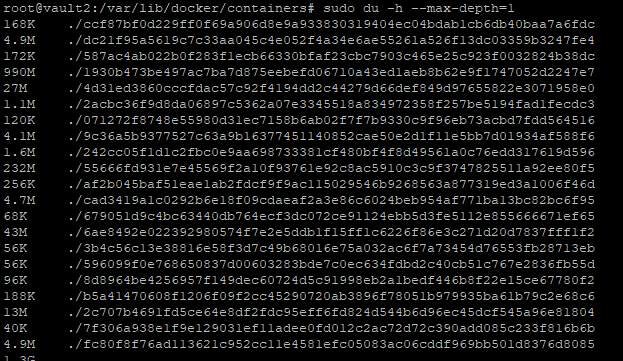
Will give the usage of the user you are logged in as
```bash
sudo du -h --max-depth=1
```
[](https://bookstack.thecartwrights.nz/uploads/images/gallery/2024-03/image.png)
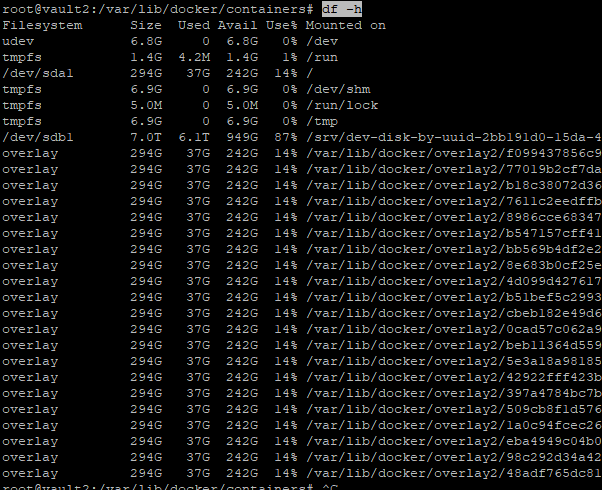
The `df` command primarily checks disk usage on a mounted filesystem. If you don't include a file name, the output shows the space available on all currently mounted filesystems. Disk space is shown in 1K blocks by default:
```bash
df -h
```
[](https://bookstack.thecartwrights.nz/uploads/images/gallery/2024-03/Kcmimage.png)
List All Block Devices in Linux
lsblk
```
lsblk
```
[](https://bookstack.thecartwrights.nz/uploads/images/gallery/2024-03/zVQimage.png)
[](https://bookstack.thecartwrights.nz/uploads/images/gallery/2024-03/aXfimage.png)